
7 Places to Tag Your Products on Instagram
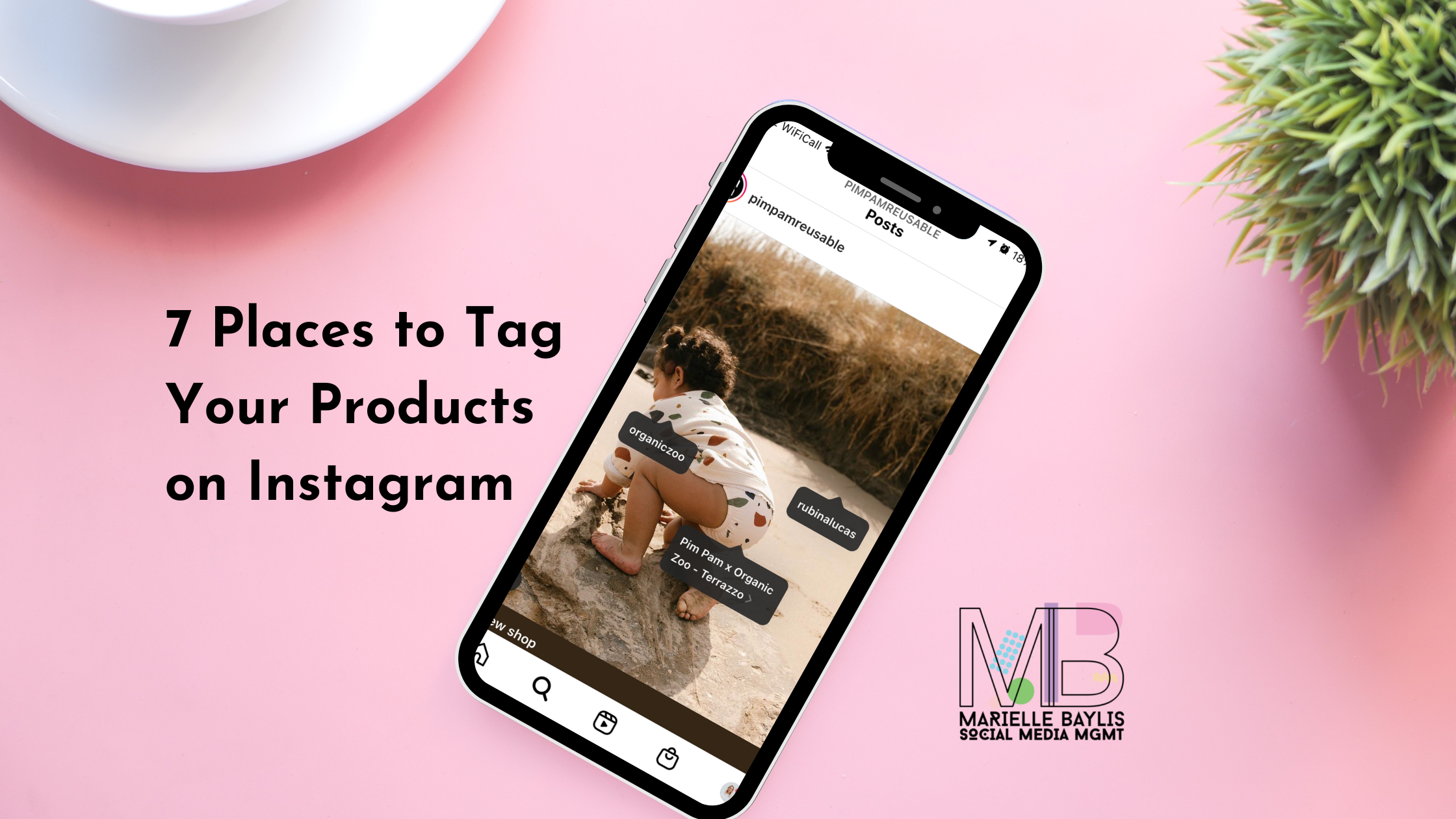
If you are a small business and have your Instagram Shop set up then this is the blog post for you. Did you know that there are numerous places to tag your products on Instagram and increase your sales?
In this blog, I am going to walk you through all the placements at your disposal to increase the reach of your products. So keep reading to ensure you are maximising your Instagram Shops exposure.
What Is A Product Tag?
Once a business selling physical products has its Instagram shop approved, the business will have the ability to tag products from a catalogue. These product tags help customers learn more about the products they are selling by featuring them in their social posts.
Businesses with an approved shop can currently tag their own products in their feed posts, stories, reels etc. When Instagram users tap the product tag featured on a post, they are redirected to a product detail page. You can add more than one shopping tag to a post or story.
A product detail page (PDP) showcases all relevant information about an item, including pricing, descriptions and imagery/video.
Why You Should Tag Your Products
By regularly tagging your products you are telling users more about what you sell and how they can buy it at a touch of a button.
A product tag simplifies the buyers' journey by directing them straight to a website product page where the sale can be completed.
There is nothing more annoying than finding a product you love on Instagram and discovering it’s not tagged 🙄. In order to find it you have to click the link in the bio, go to the website, search for it manually and may not find the exact one you are looking for. You get the picture.
Plus, with the cost of living crisis that's upon us currently, it’s more important than ever for small businesses to be making it as easy as possible for those all-important sales to take place.
Where Can You Tag Your Products?
Let's run through all the places you can tag your products. Some you’ll be familiar with but there may be a few surprises in here too.
1. Grid Posts
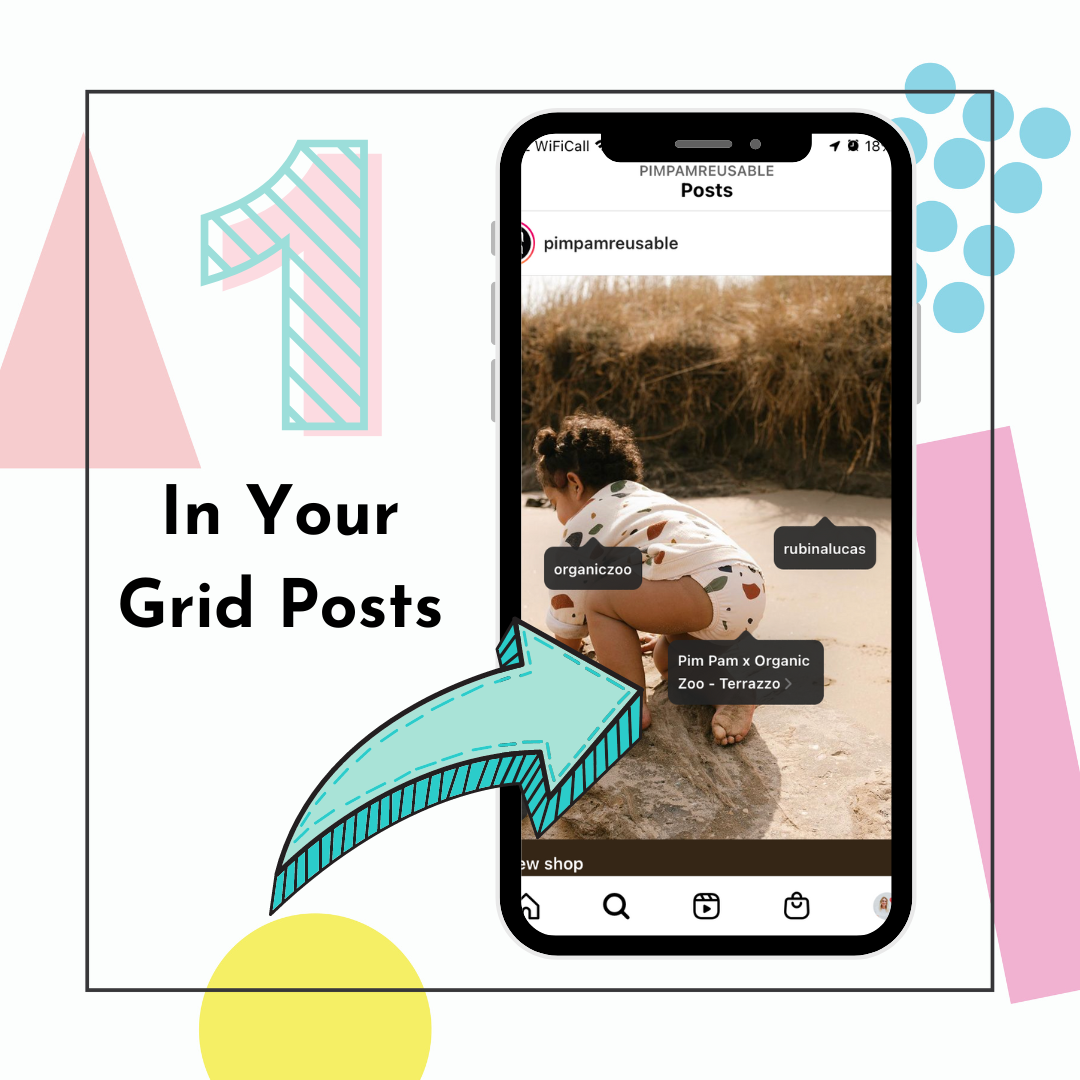
Pim Pam Reusable Nappies regularly tag their products in their grid posts
By tagging products in your grid posts users see at a glance that there are products mentioned in a post. A shopping bag icon will appear in the left-hand corner of the image when viewed in the feed along with a banner underneath the post with the words ‘View Shop’.
To tag your products in your grid posts:
Write your caption as you would normally - image, caption, hashtags etc
Tap ‘Tag' Products’ tab underneath the caption box
Find the product(s) from your inventory that is featured in your grid post - tap them to add the tag
Publish your post once all product tags are added.
You can tag up to 5 products within a video or photo feed post and tag up to 20 products in a carousel post, with up to 5 product tags on each individual photo or video.
When viewing the profile of an Instagram Shop Owner, a tagged post will have a shopping bag icon in the top right-hand corner (see the image below).
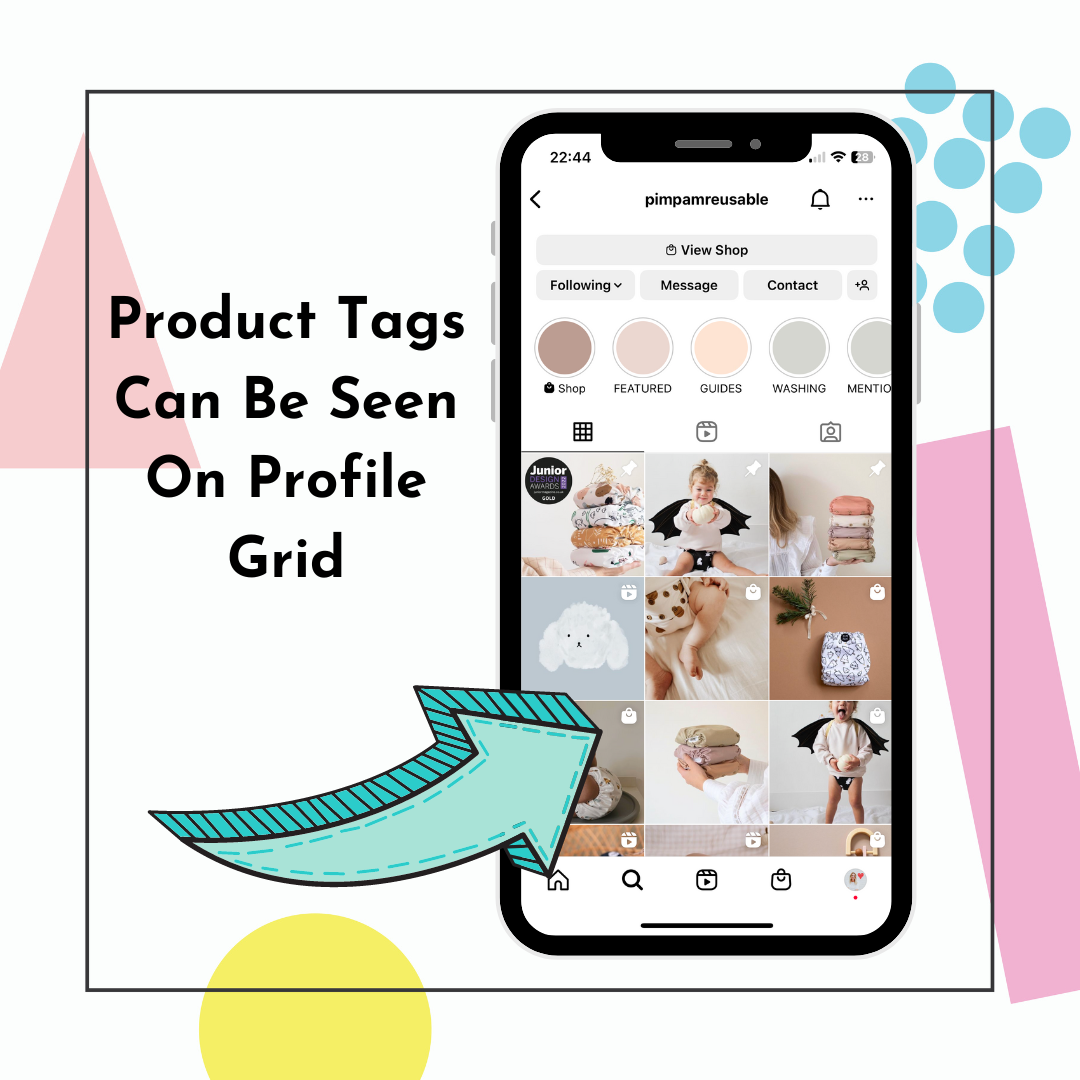
Product tags can be seen on the profile grid, in the top right-hand corner of each tagged image
2. Stories

Tag products in stories to lead buyers to your Instagram Shop and website to purchase
Tagging products in your stories is a brilliant way to create sales content quickly and easily. When adding add an image/video to your story that features a product, add a product tag so that viewers can tap it and head straight to your product detail page to learn more.
To tag products in your story:
Add an image to your story by either taking a photo or upload from your camera roll
Tap the stickers icon (smiley face) on the top menu bar
Find the product(s) from your inventory that is featured in your story - tap them to add the tag
Tap ‘Done’ in the top right-hand corner
Using your finger press the blue product tag and move it to your place of choice on the screen
Publish the story by pressing the white arrow at the bottom right corner
You can tag up to 5 products in your story.
3. Reels

Short-form video is still one of the top-performing content formats for 2022. Instagram recently shared that Reels are Instagram's fastest-growing content option, with 20% of all time on Instagram now spent in its Reels feed.
So, Reels should definitely be included in your Instagram strategy and if these Reels feature your products, you should be tagging them to increase your sales.
To tag products in your Reels:
Create your Reel as you normally would and write caption etc
Tap the ‘Tag Products’ tab underneath the caption box
Find the product(s) from your inventory that is featured in your Reel - tap them to add the tag
Tap ‘Done’ in the top right-hand corner
Tap ‘Share’ to publish your reel
You can tag up to 30 products in your Reel. Please note that it's important to only tag products that actually feature in the Reel itself. Over-tagging would not be an advisable strategy.
4. Live Shopping
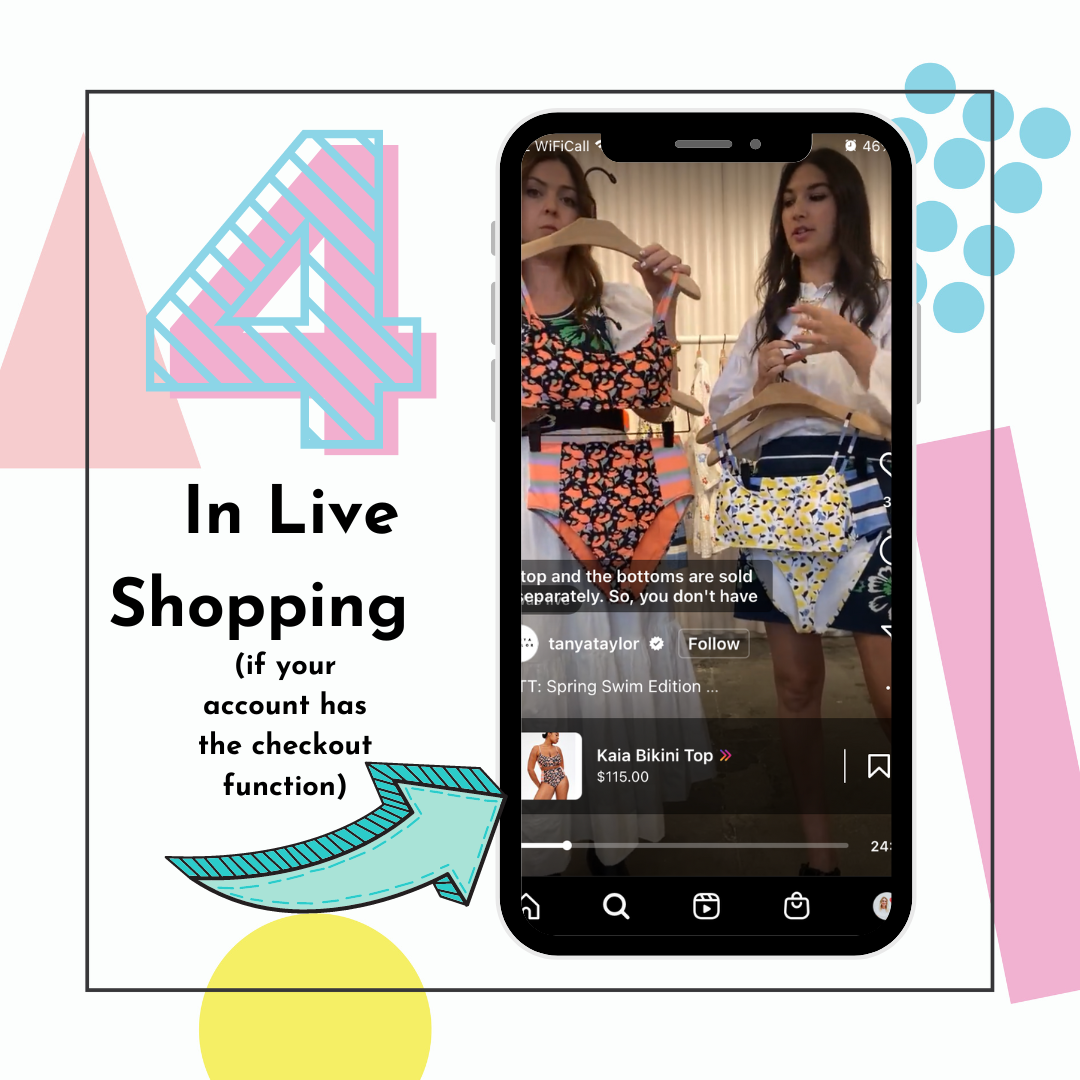
Tanya Taylor tags her products in Instagram Live Shopping Videos
Only checkout-enabled businesses and creators can tag products when they go live on Instagram (this feature is not widely available here in the UK currently).
Before you begin:
Your shop must be checkout-enabled to tag products in Live on Instagram.
Before going live, you can tag up to 30 products or a collection to feature during your Live. You can also pin 1 product at a time while live to feature that product.
To tag products in your live broadcasts:
Tap Live
Tap Shopping
Select the product(s) or collection you want to feature
When you’re ready, tap to go live
To pin a product while live, tap ‘Pin’ at the bottom of the live viewer.
Select the product you wish to feature.
You can change this throughout your live broadcast
5. Guides

Guides are a great way to curate collections of products together to share with your audience. You can create product-based collections for seasonal gifting ideas - Christmas, Stocking Fillers, Mother’s Day, Father’s Day, Valentines etc. Or create guides based on collections of products you offer - clothing, shoes, accessories, prints, gifts or jewellery for example.
A few reasons why guides are great:
You can share them more than once. There will be so much value in your guides they are worth sharing numerous times - share the link on stories, in newsletters or on other platforms such as Facebook, Twitter, and LinkedIn.
Tagged products can be discovered by other accounts and included in other creators' guides. Imagine if that was a massive influencer or a national magazine, for instance!
You can continually edit your guides, adding and removing posts. So if a product is discontinued, just remove it and replace it with another.
Build relationships - with influencers and other brands by including other accounts/brands' products in your guides. It's always flattering when someone shares your posts so use it as a community-building tool.
To create a product guide:
To create a product Guide:
Tap ‘+’ sign on profile
Tap ‘Guide’
Choose the ‘Product’ guide type
Type your shop name into the search bar, click on your shop from the list
Search for the product you want to add to your Guide and select it.
Choose the product you want to include in the Guide then tap on “Next.” A product tag is automatically added to each product you include in the Guide.
Add a title for your Guide so people can know what it’s about.
You have the option to change the cover photo to make it look more enticing and consistent with your brand.
Once a guide is published you can find it here on your profile ⬇️

6. Story Highlights

Did you know that you can turn on a toggle in your settings that automatically saves your product-tagged stories to a highlight folder on your profile? Clever hey!
And the best thing about this fantastic Instagram Shopping feature is that only takes a few seconds to implement.
By switching this on, it will ensure users landing on your profile understand immediately that you SELL PRODUCTS.
The 'Shop' highlight folder makes it EVEN easier for users to find products and buy at a click of a button.
To turn the Shop Highlights on:
Tap the burger menu (top right)
Tap ‘Settings’
Tap ‘Privacy’
Tap ‘Story’
Tap ‘Automatic Highlights’
Turn toggle on
Once you have turned this feature on in your settings, any of your stories that have products tagged in them will automatically be saved to this folder. Utterly genius, non?
You can add up to 100 photos or videos to your Instagram Stories Highlights and there's no limit to how many Instagram Stories Highlight folders you can create. If you add more than 100 clips to your current highlight folder, the first one will be removed and added to your Archive.
7. Instagram Ads

Paul Fuentes Photo tag their products in Instagram ad placements
You can tag products featured in your Instagram ads too.
When a user sees an Instagram ad placement and loves the product they see, they can simply tap on the product tag to learn more about that product and click again to buy. Slick stuff, hey.
To tag products in your Instagram ad placements:
Create your ad campaign in Ads Manager
Choose the placements you wish to edit and add your product tags to in the ‘Ad Creative’ section (see image below)

Choose which placements you want to add product tags to here in the ‘Ad Creative’ section
Tap ‘Tag Products’ button
Double check the correct catalog is assigned
Type the product name or SKU you want to tag in the blue product box
Once located the correct product, select it and it will automatically add the tag to your ad
To add another product tag, click ‘+ Tag Another Product’ and repeat

So there you have it, a plethora of ways to tag your products and make it easy for your customers to buy your wares.
Check Your Shopping Insights
Once you have been tagging consistently, check in with your shopping insights in Commerce Manager regularly.
Here you will find a selection of golden insights such as:
Shop Performance
Shop Visitors
Product Page Views
Product Page Clicks To Website
Adds to Wishlist
Top Tagged Content
By analysing these insights regularly you will understand what your customers love and which products are your top performers and which need work.
Summary
If you have your shop set up and currently only tag the odd post here and there, try to add a few more of these methods into your strategy. Then build upon this week on week.
Check in regularly with your shopping insights in Commerce Manager and amend your tagging strategy based on your findings.
In addition, Instagram has recently allowed ALL users to tag products in their posts which means your products can get even more reach and visibility. Read my blog which goes into more detail on this and what it means for your business.
If you would like a Social Media Audit on your account, I offer these for £200. I will carry out an audit across your Instagram & Facebook platforms. You’ll receive a PDF report highlighting what’s working well and what areas could be improved. I will give suggestions on how you could improve performance with a list of actionable points. To learn more about a Social Media Audit and other services I offer, click here.
Good luck with it all and happy tagging!
Marielle x