Instagram Introduces the Portrait Grid
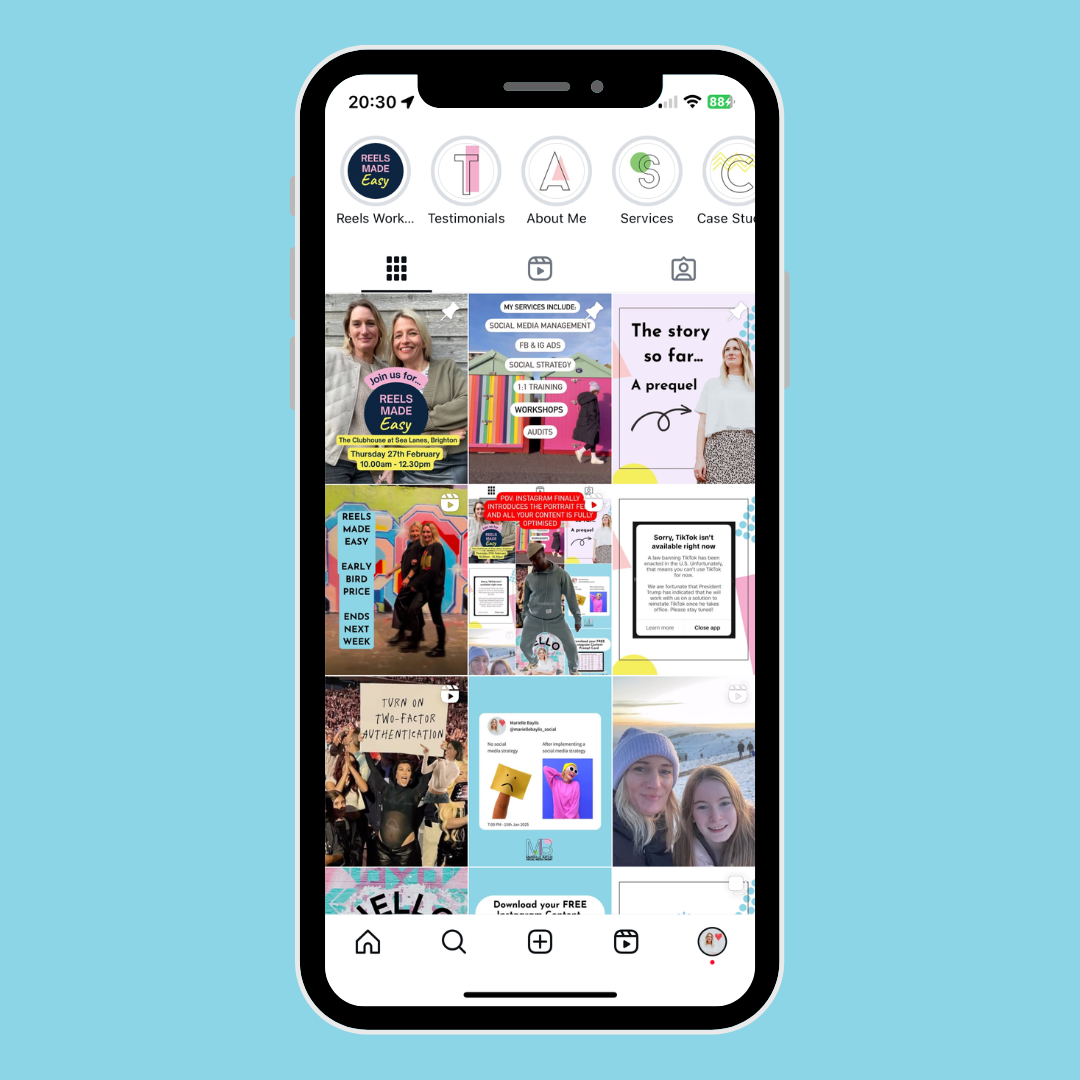
Instagram recently rolled out the portrait (rectangular) grid, which came as a surprise to those still posting square imagery and videos.
If you had posted square imagery/videos before the update your grid would have looked a little odd & un-optimised 😱.
Lots of FAQ’s slid into my DM’s just after the update rolled out so I thought I’d share & answer a few here for you.
Q: Is it possible to change it back to square?
A: No I’m afraid not, you can adjust your content using the new adjust preview feature though:
▪️View your grid
▪️Tap a post of your choice
▪️Tap the 3 dots, top right
▪️Tap ‘Adjust Preview’ option
▪️Tap the ‘Fit’ corner arrow icon to change the preview to your preferred format
▪️Tap ‘Background’ to choose the background colour - currently only black or white borders available
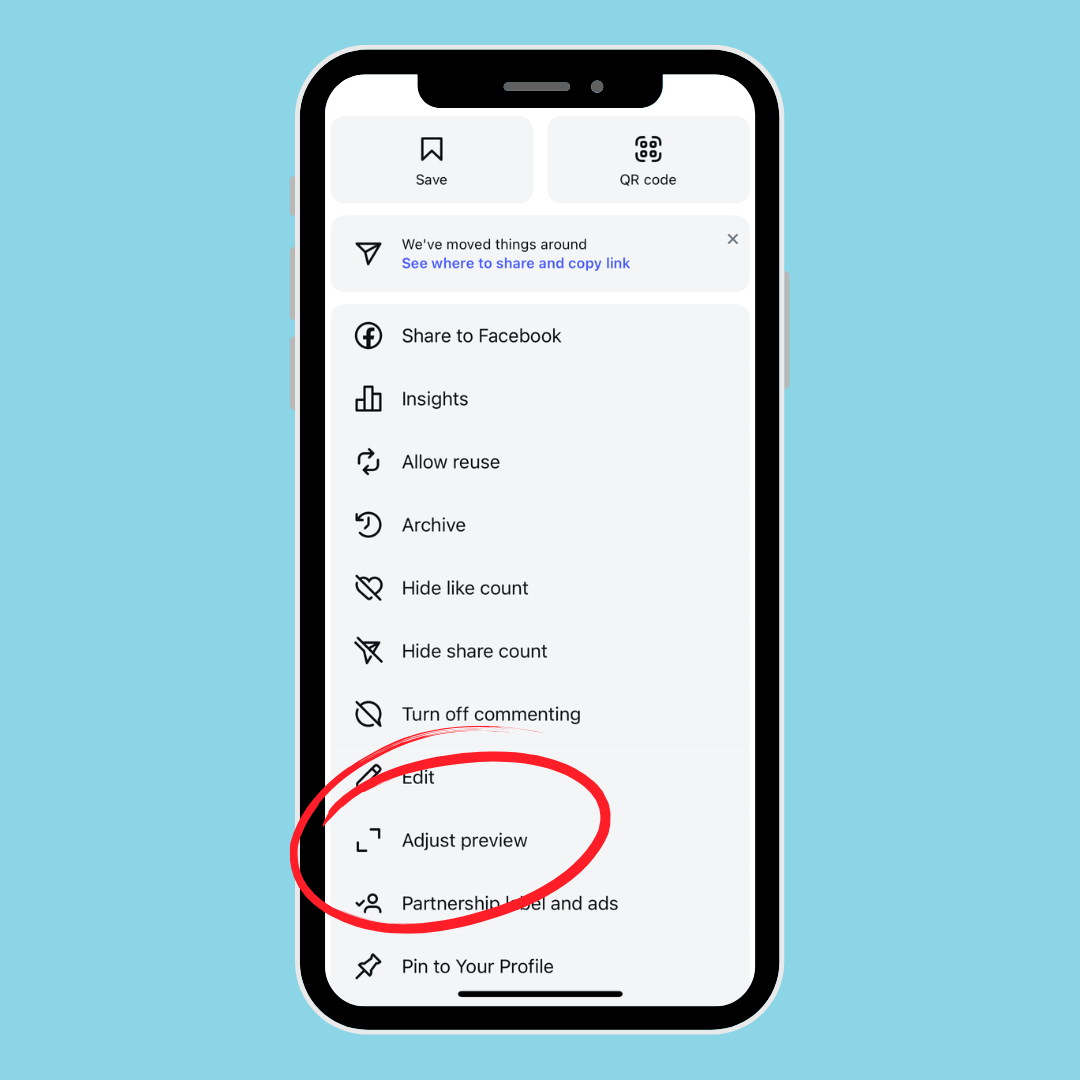
The new ‘Adjust Preview’ button
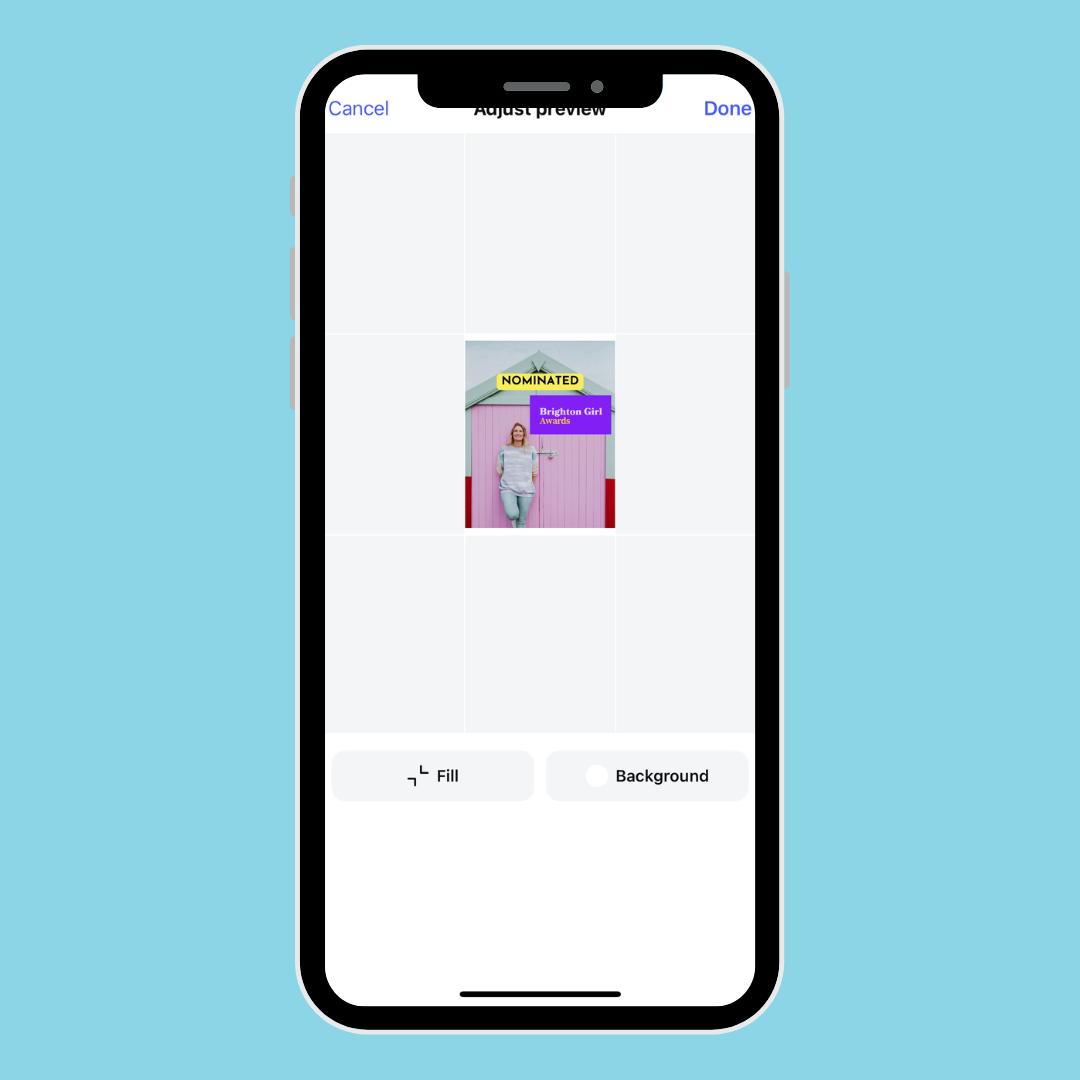
Tap ‘Fill’ and choose from a white or black background colour
Q. Do I need to do this for all my content?
A. No. I’d advise doing this to the top 9-16 posts that are the most visible in your grid. Alternatively, don’t worry about it too much and just start posting in portrait for all future posts (read on for more on this)
Q. How do I avoid this going forward?
A. If uploading imagery manually from your camera roll:
▪️ Upload image from camera roll
▪️ Tap the adjust icon, bottom left, to adjust the image format from square to portrait dimensions
▪️ Upload as usual
A. If creating in Canva - create all your posts with an Instagram Portrait template.
You can download my handy Instagram Portrait Grid Canva Template which comes complete with handy guidelines so you know where all the important text/information can sit safely. Design all your future content using this template and your grid will look perfect.
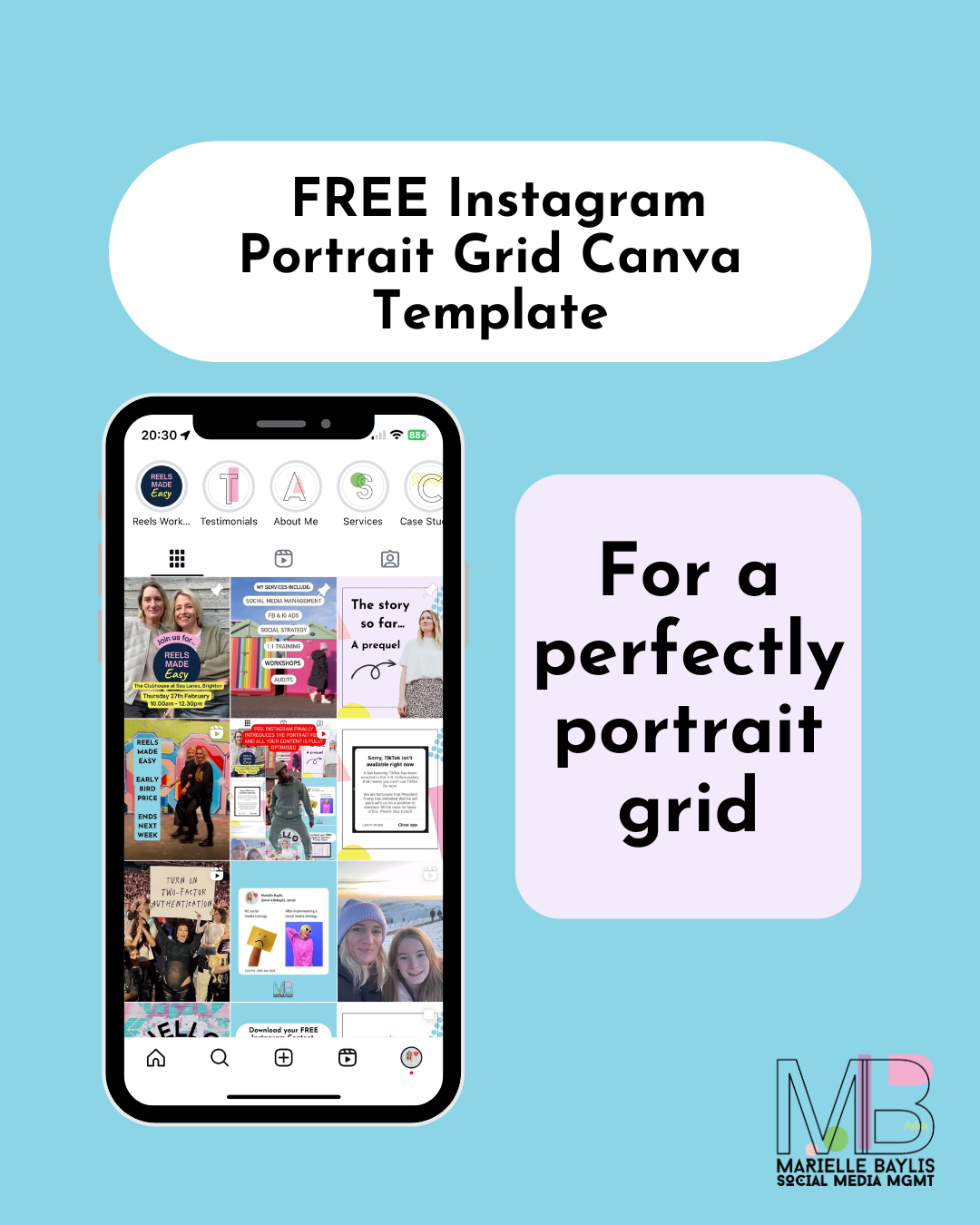
Alternatively, type ‘Instagram Post’ into the search bar and choose the template sized 4:5, 1080 x 1350 px.
Q. What about Reels?
A. You can edit published Reels and add new Reels cover, anytime.
▪️Tap edit
▪️Tap Cover on the thumbnail
▪️Upload a story-sized image from your camera roll
▪️Tap Done
Hope this was helpful.
Marielle xx